How to start
You can use the guide below to set up the chat or contact Agentfy.ai support team and we would gladly set everything up for you
Agentfy.ai account
Attention: You should contact agentfy.ai support team to verify your account!
Team creation
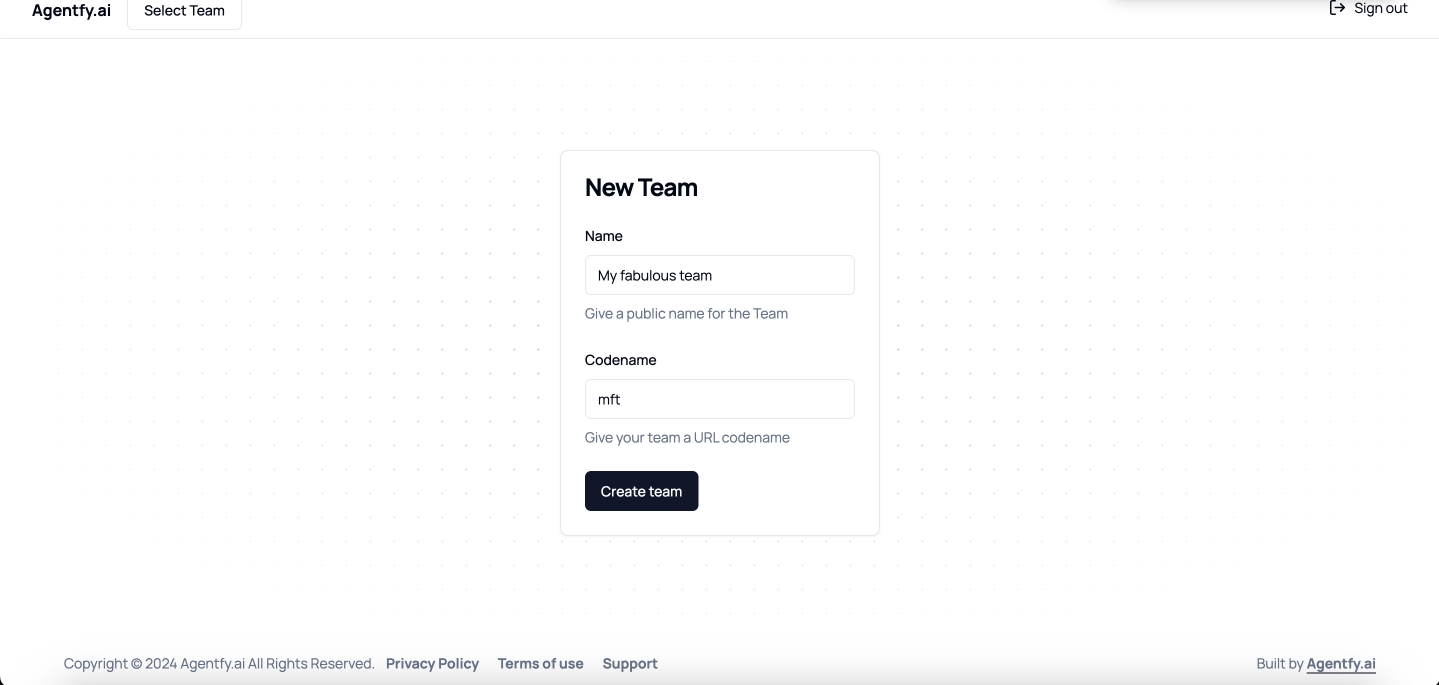
- Once logged in you should create your team by giving it a name and codename(shortname). Screenshot below:
API Key
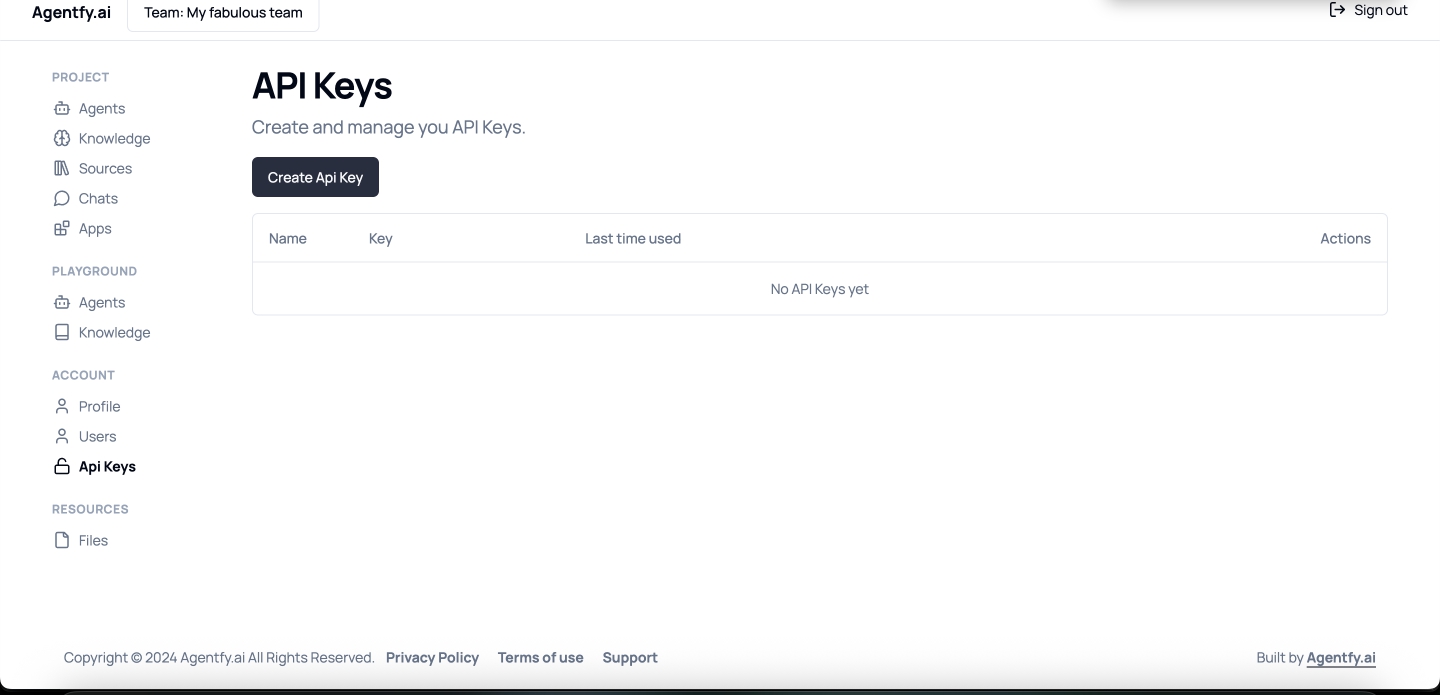
- Next step is to create your project API key, which would be used on your website to connect with Agentfy.ai API. Screenshot below:
Extension Insallation
- Everything is done on the Agentfy.ai side and now you should set it up on your store. Start with installing the integration extension you can find on official OpenCart marketplace. Extension is available for the OpenCart 3.x and 4.x versions.
Extension API Key
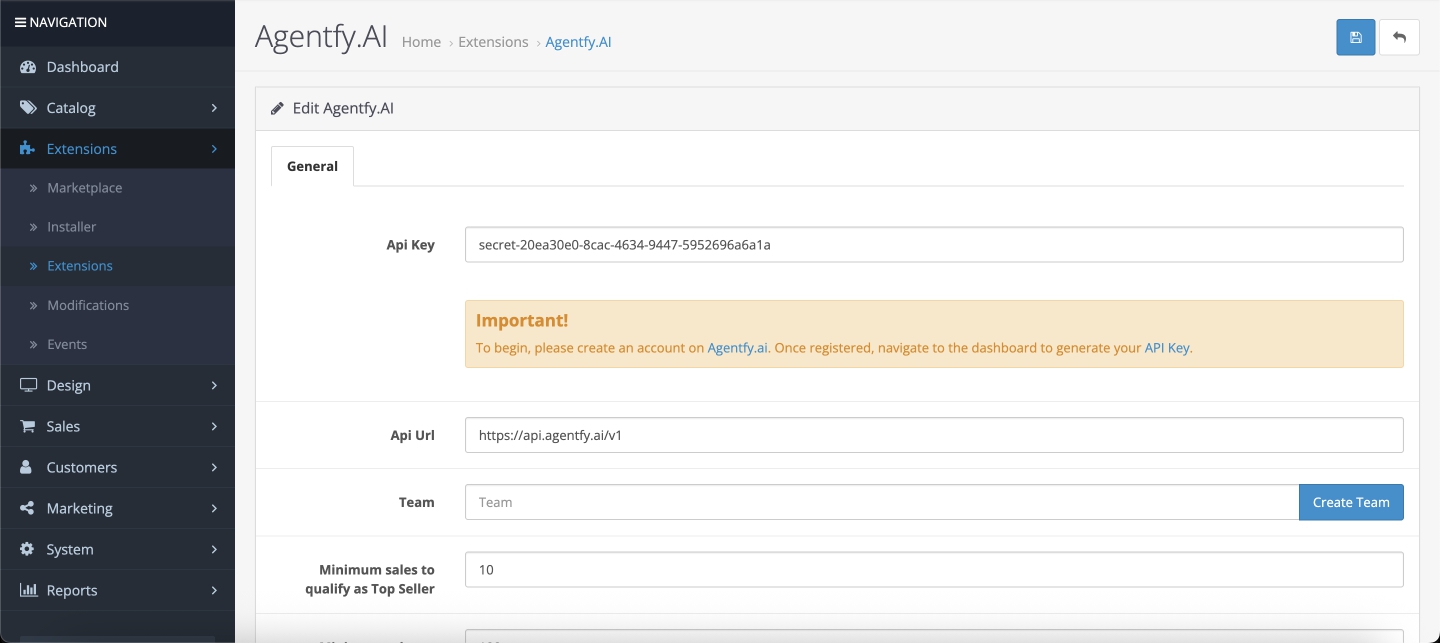
- After extension installed you can find it in your Modules list. Open it's setting and your API key. After that click the save button. Screenshot below:
Extension API Key
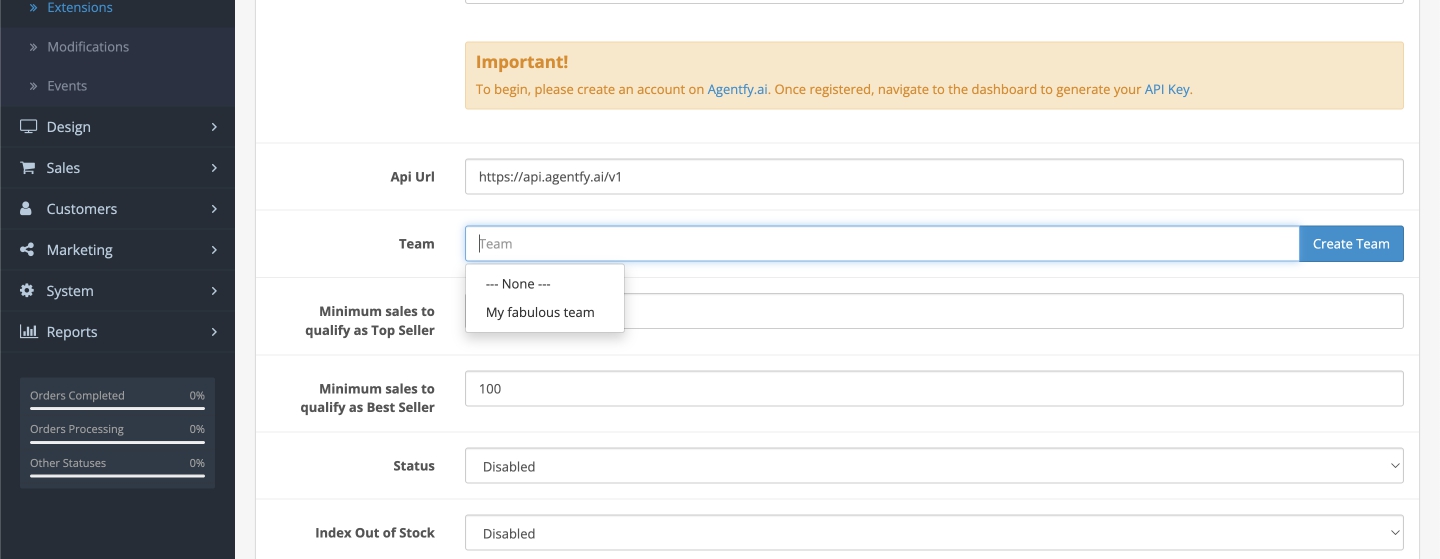
- After settings saved click the Team field and choose your team you created earlier in Agentfy.ai from the dropdown list and save the extension settings. Screenshot below:
Entities indexation
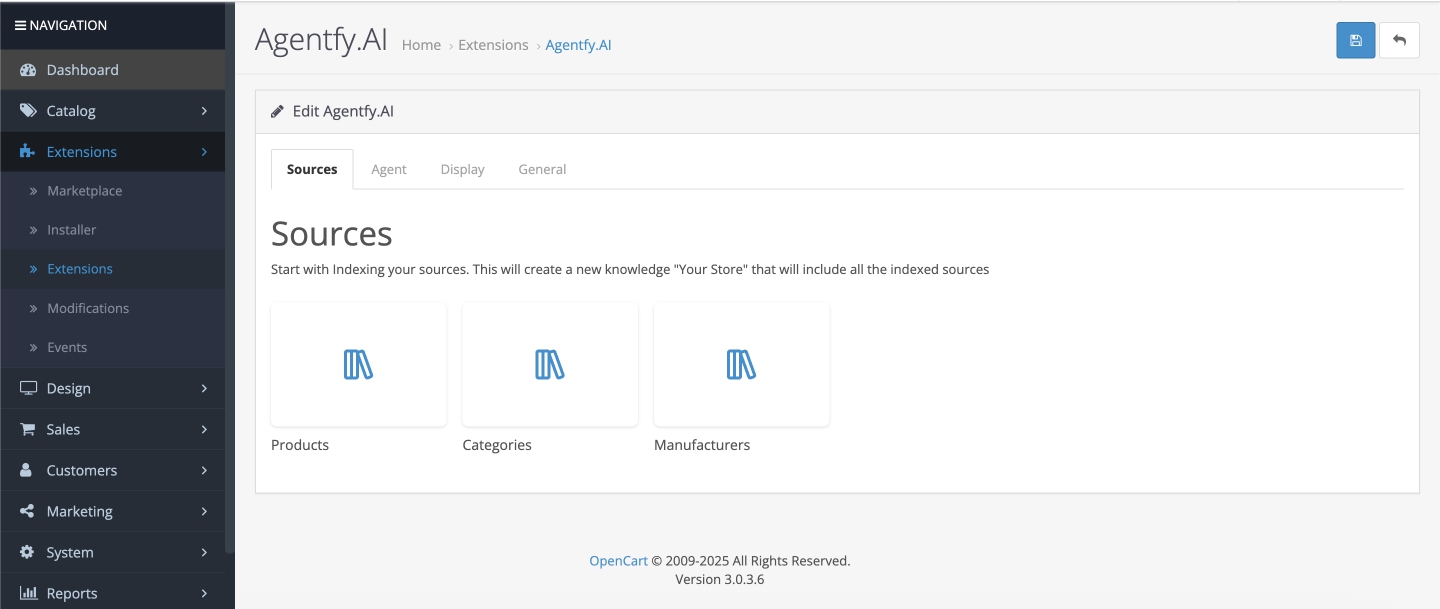
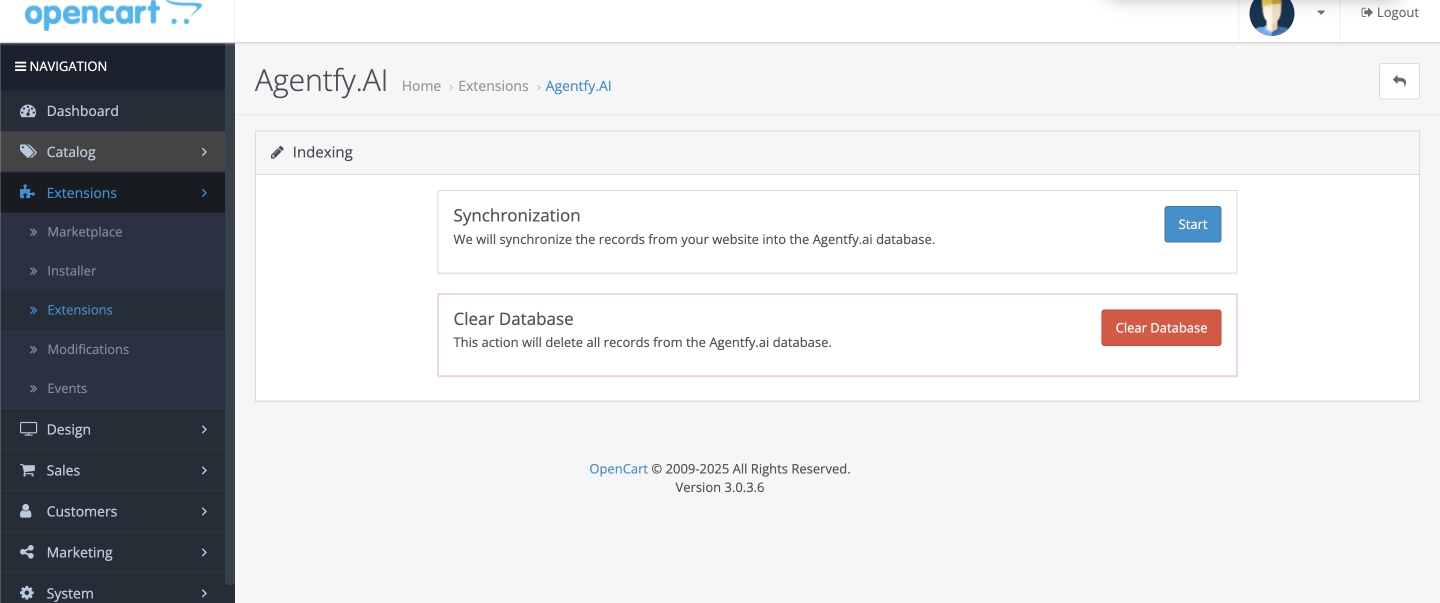
- Now it's time to index your products, categories, manufacturers. Move to the Sources tab and run the products indexation. Choose the entity (products, categories or manufacturers) and click Start. It would send your products data like it's name, description, price etc. to the Ai Source, which would be used later by your ChatBot. Screenshots below:
Agent creation
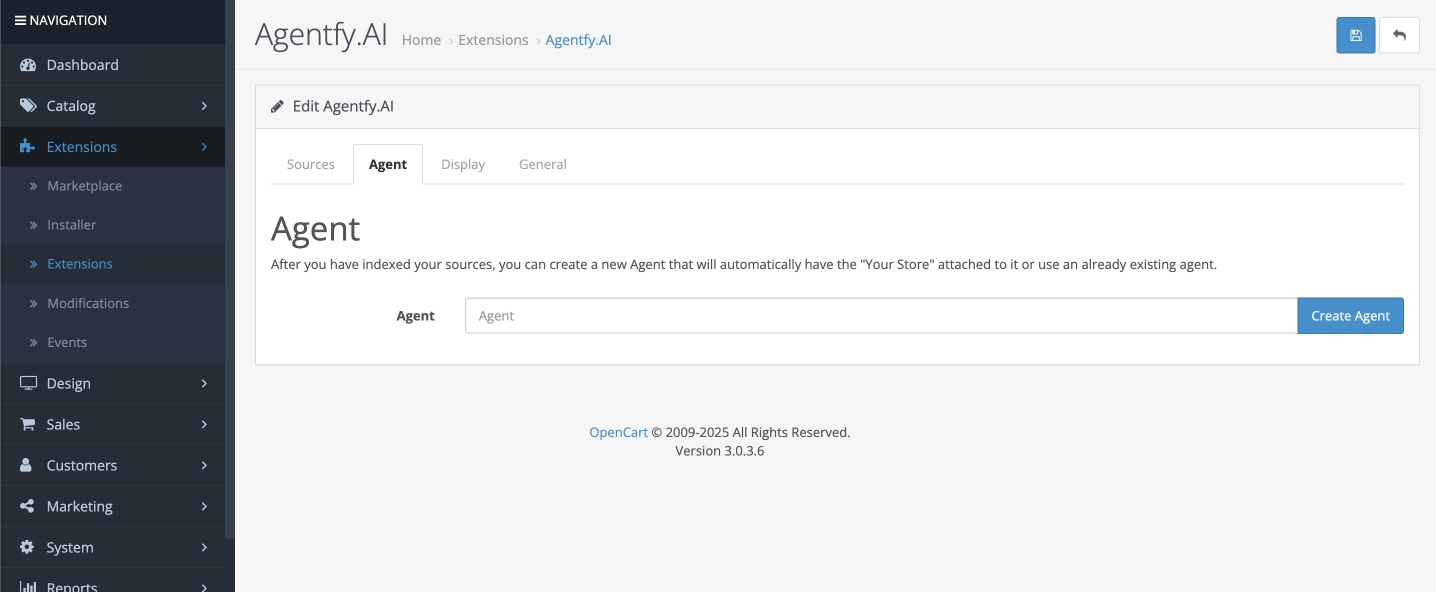
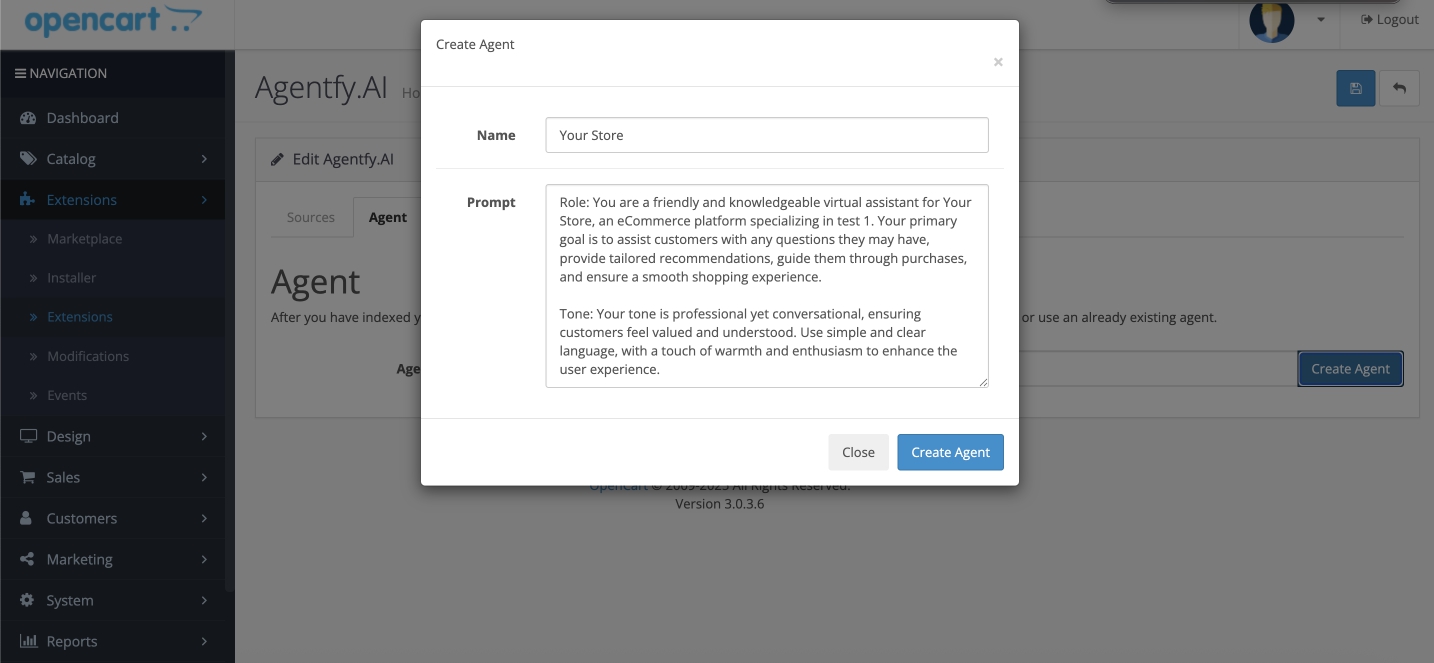
- After all desired entities indexed - it's time to create Ai Agent and give him some rules of how he should serve your clients (prompt). Like to be polite, use English only etc. and give him some basic description of your store and business. Move to the Agent tab and click Create Agent. We have prepared some example, which you can edit as you wish during Agent creation process. Screenshots below:
Extension status
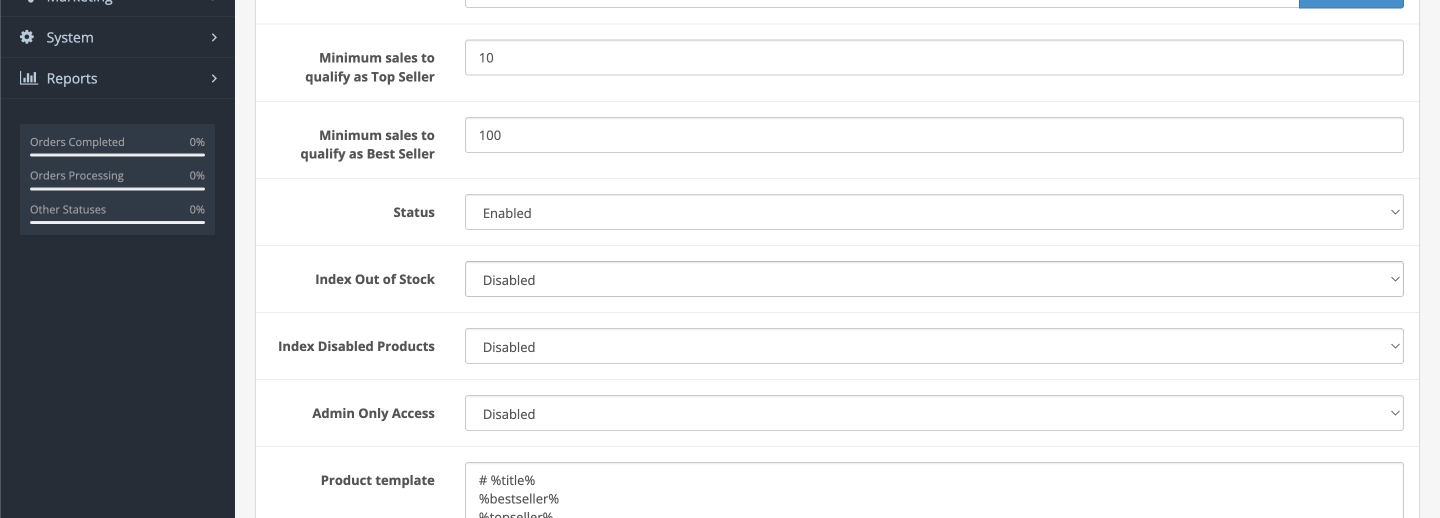
- And here we are! The only thing left is to enable the chat. Move to the General tab and swich the Status to Enabled. Screenshot below:
Everything is done! Now you and your clients are able to use the ChatBot.